Sharing whiteboards
You can share whiteboards using the share link. Workspace members always have access according to their role, but you can also control what happens when the link is opened by someone outside your workspace.
Anyone with link
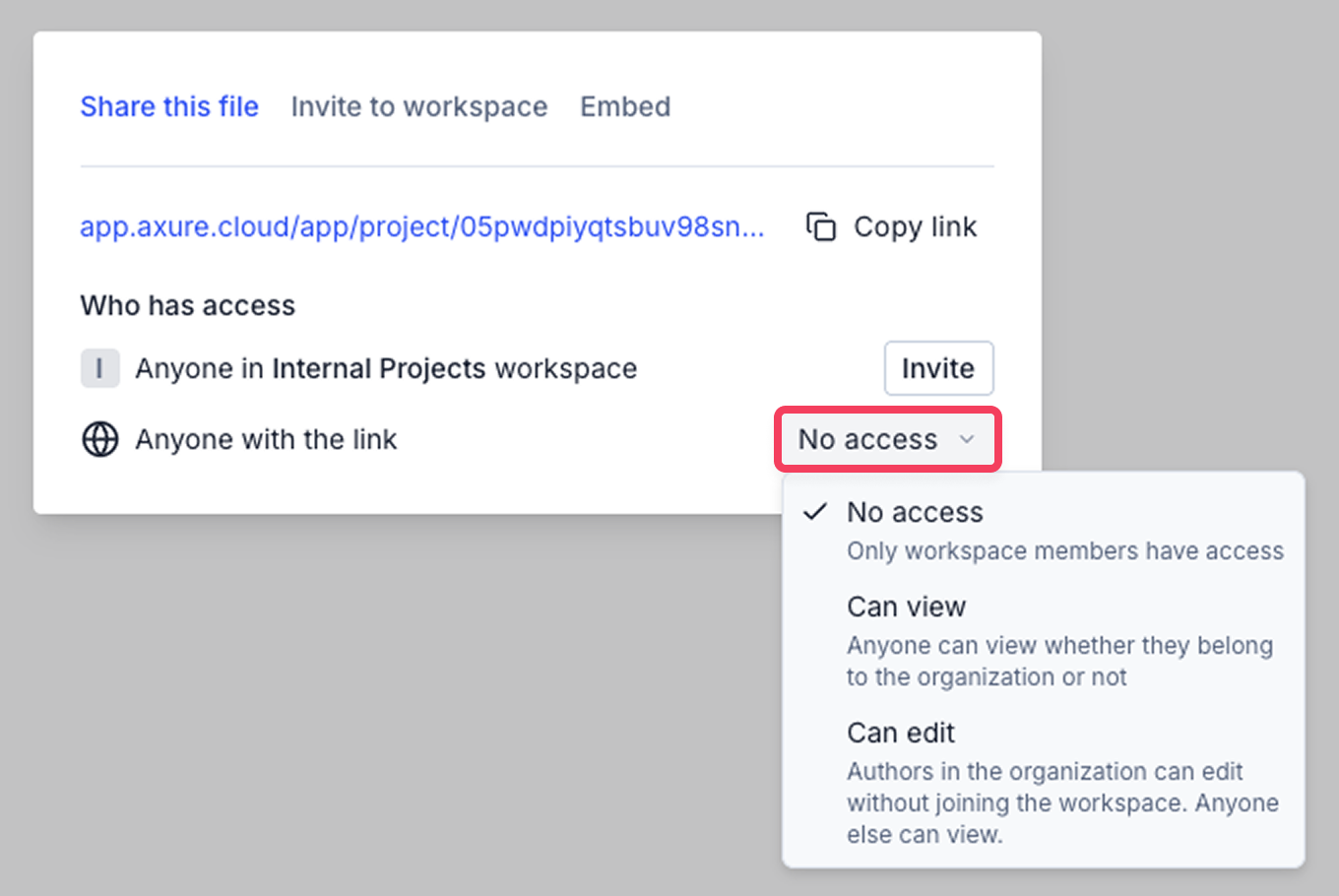
When you click Share in the top-right corner of a whiteboard you'll see options to copy the share link and set access for Anyone with the link. For anyone with the link, you can choose from these permission levels:
- No access: Only workspace members can open the item
- Can view: Anyone with the link can open and view the item, even if they aren't part of the workspace
- Can edit: Authors in your organization can edit the item without joining the workspace. Everyone else with the link can still view the item
To update a whiteboard's share link permissions:
-
Open the whiteboard you want to share.
-
Click Share in the top-right corner.
-
Use the dropdown next to Anyone with the link to choose a permission level.
-
Copy the share link.
-
Share the link with others.
Sharing with AI tools
You can also give AI tools access to your whiteboard content via the Axure MCP server. Once connected, an AI tool can read your canvas and document content when you share a link in a prompt. See MCP (AI integration) for setup instructions.