Outline pane
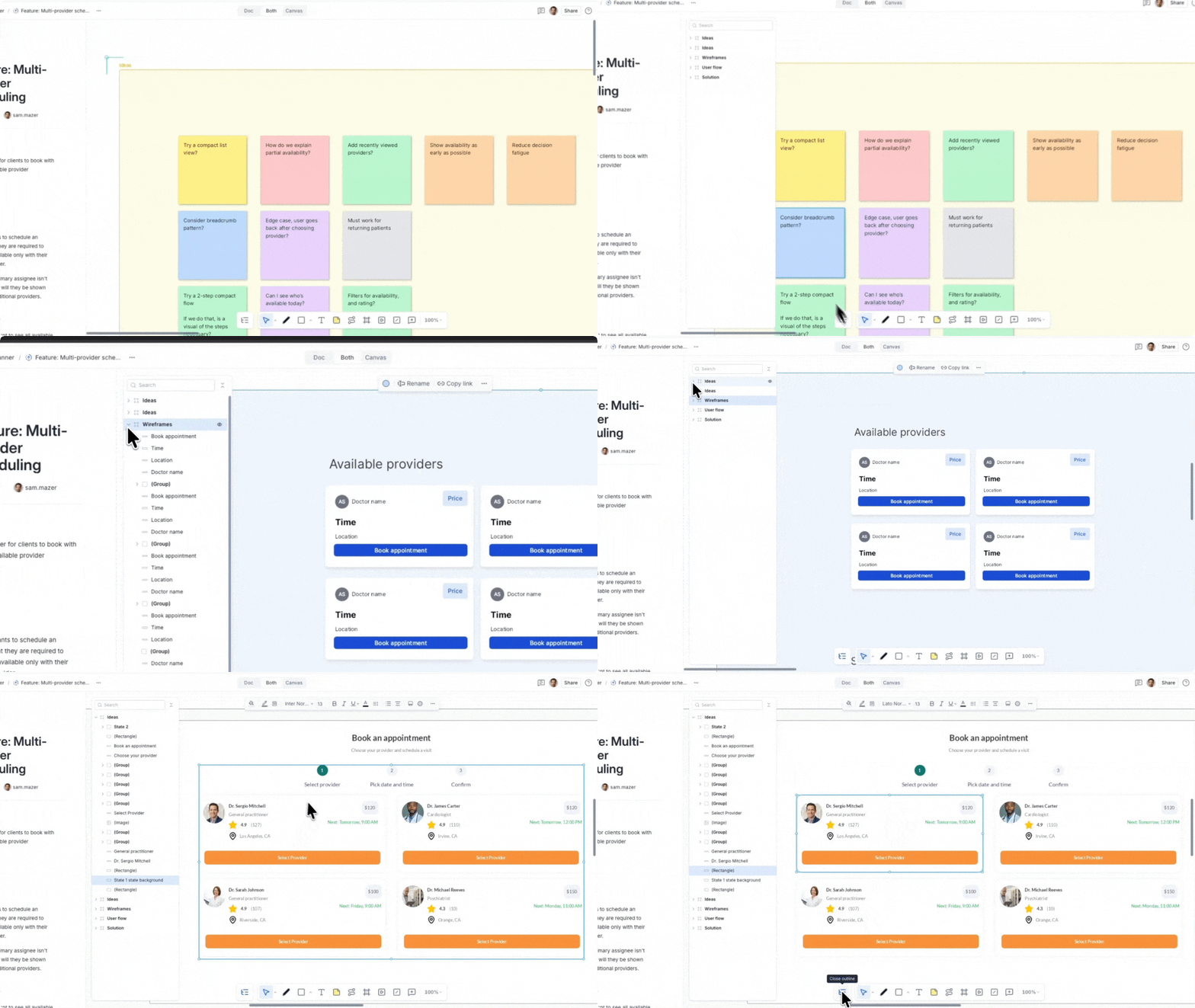
The Outline pane shows a hierarchical list of every object on the canvas, sections, groups, frames, shapes, connectors, and more. Use it to navigate, select, rename, reorder, and organize objects without having to find them on the canvas directly. Selection in the Outline stays in sync with the canvas: selecting an object in one updates the other.
Opening the outline pane
-
Open a whiteboard on app.axure.cloud.
-
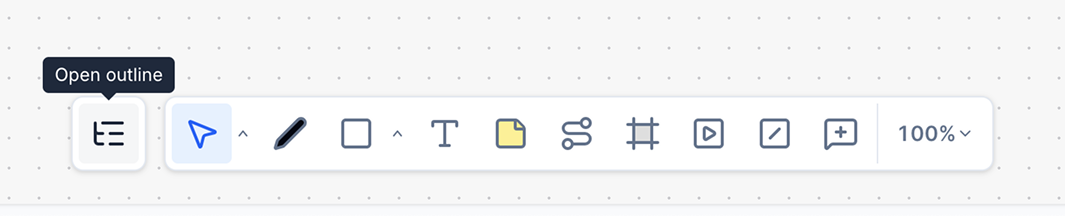
Click the Outline button in the toolbar to open the pane.
-
Click the Outline button again to close it.
For files in the Libraries workspace, the Outline pane is always open and cannot be closed.
Selecting objects
Click any row in the Outline to select that object on the canvas. The canvas will pan to bring it into view if needed. To select multiple objects:
- Shift + click: selects a range from the last selected row to the clicked row.
- Ctrl + click (Windows) / Cmd + click (Mac): toggles individual objects in or out of the selection without affecting others.
- Click an empty area in the Outline to clear the selection.
When you change the selection on the canvas, the Outline expands parent rows and scrolls so that selected objects are visible.
Use the Outline to select objects that are hard to click on the canvas, such as items hidden behind other objects.
Renaming objects
Double-click an object's name in the Outline to edit it inline. Press Enter or click away to save the new name. Press Escape to cancel and keep the original name.
Renaming an object in the Outline renames it on the canvas as well.
Locking and hiding objects
Each row shows lock and visibility controls on the right side:
- Eye icon: click to toggle the object's visibility on the canvas. Hidden objects remain in the document and can be made visible again at any time.
- Lock icon: click to lock or unlock the object. Locked objects cannot be moved or resized on the canvas until unlocked.
These controls are also available in the right-click context menu.
Context menu
Right-click any row to open the same context menu as when right-clicking an object on the canvas. This gives you full access to actions like duplicate, delete, lock, show/hide, and add to library.
Searching and collapsing
Use the Search box at the top of the Outline to filter objects by name. Matching objects and their parent rows stay visible; everything else is hidden. Clear the search to restore the full list.
Click the chevron next to any section, group, or frame to expand or collapse its children. Use the Collapse all button next to the search box to collapse every layer at once, leaving only top-level rows visible.