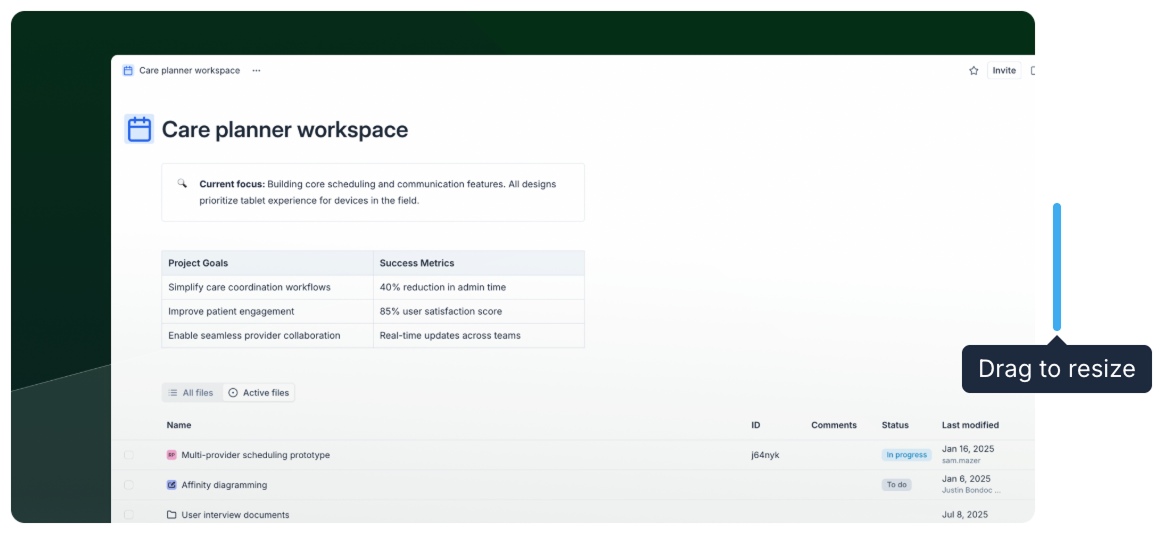
Documents
Every whiteboard includes a document, a live collaborative text editor that sits alongside the canvas. You can also create standalone documents without a canvas, which are useful for PRDs, meeting notes, knowledge bases, and other written content that doesn't need visual diagrams.
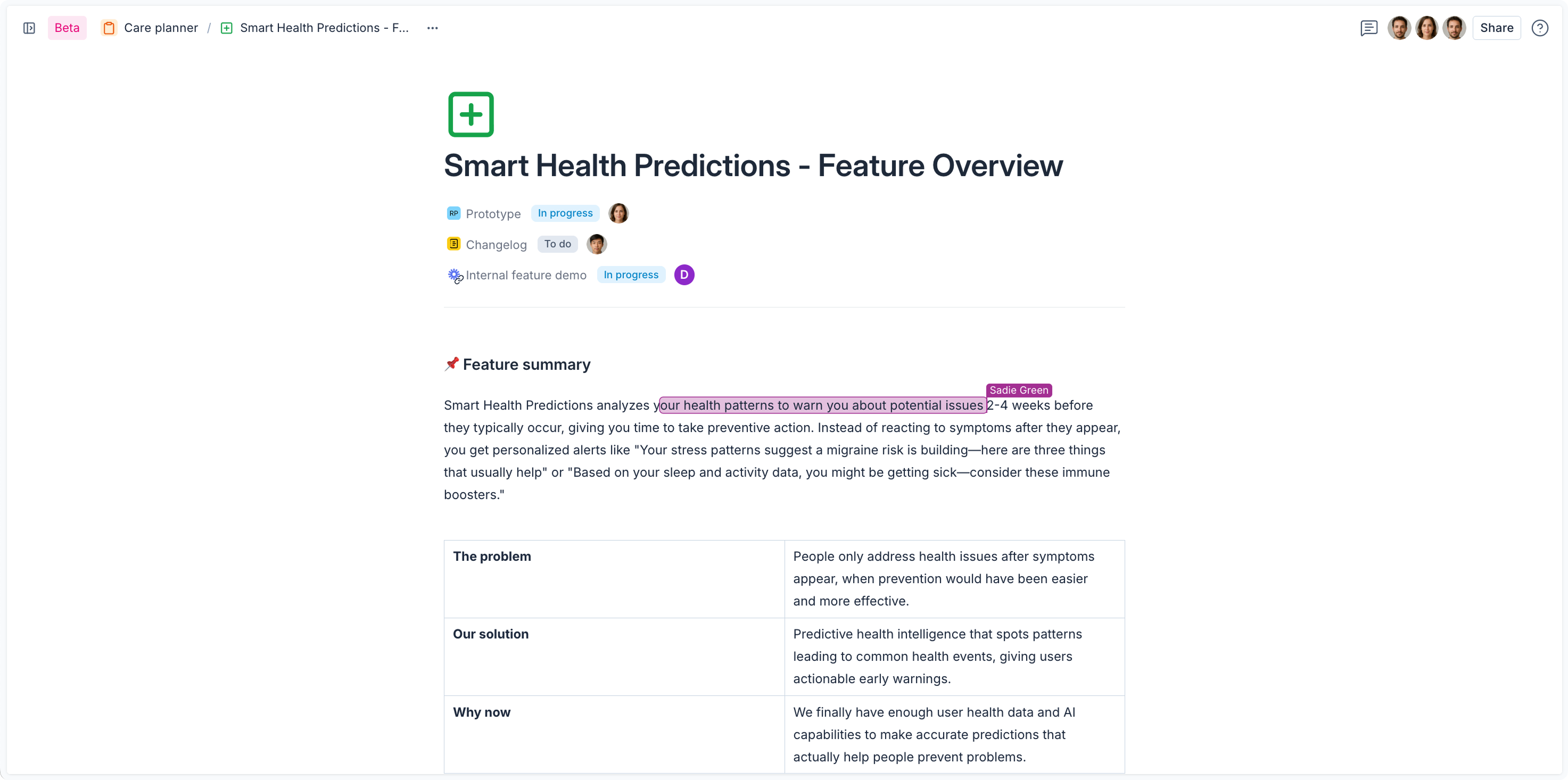
Standalone documents
To create a document without a canvas:
- Select a workspace in the sidebar.
- Click New and choose Document.
A standalone document opens in full-screen mode. It works identically to the document panel inside a whiteboard, but without a canvas alongside it.
Documents and whiteboards share the same template system. See Templates for details on creating and applying templates.
Block types
The document editor is built around blocks. Every paragraph, heading, list, and embed is its own block. To change a block's type, click the block handle (the ⋮⋮ icon that appears to the left of a block when you hover), or use slash commands.
| Block type | Description |
|---|---|
| Text | A standard paragraph |
| Heading 1 / 2 / 3 | Three levels of section headings |
| Bulleted list | An unordered list |
| Numbered list | An ordered list |
| Task list | A checklist with checkboxes |
| Table | Rows and columns for structured data |
| Callout | A highlighted block for notes, tips, or warnings |
| Code block | Monospace text for code or technical content |
| Embed | An interactive card linking to a URL or file (see Embedding content) |
| Divider | A horizontal rule for separating sections |
Slash commands
Type / anywhere in the document to open the block insert menu. Start typing to filter the list, then press Enter or click to insert the block at the cursor.
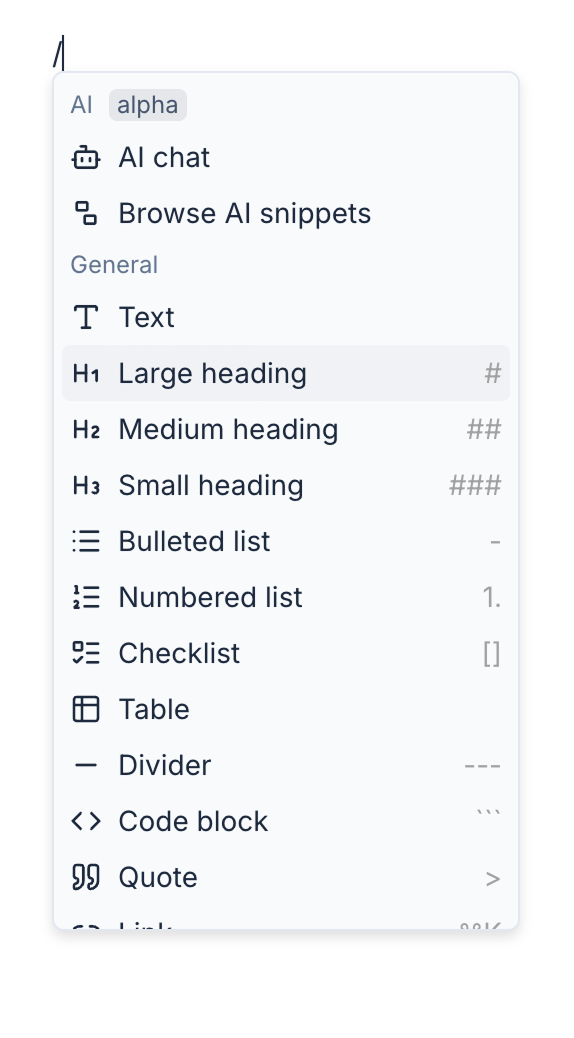
You can also change an existing block's type using the block handle menu without retyping its content.
Formatting text
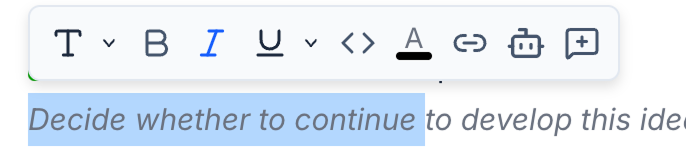
Select any text to open the bubble menu, a floating toolbar with inline formatting options:
- Bold, italic, underline,
strikethrough, and inline code - Text color and background color
- Links: select text and click the link icon to attach a URL
- AI assistant: select text and click the AI icon to open writing suggestions
Linking to canvas objects in whiteboards
In the document, you can create a link that jumps to a specific object on a whiteboard's canvas. Right-click any canvas object, copy the link, and paste it into the document.
You can also use @ to insert a section link: a live screenshot of a canvas section embedded directly in the document. See Sections for details.
Linking to canvas objects is only available when using the document of a whiteboard.
Embedding content
The document supports rich embeds for URLs, Axure Cloud files, and third-party tools. Embeds appear as interactive cards that can display a preview or launch a live iframe.
Embedding a URL
- In the document, type
/and select Embed, or paste a URL directly on a blank line. - Type or paste the URL in the field that appears.
- Press Enter to insert the embed card.
The embed card shows a preview of the linked page. Click the play button to load it as a live interactive iframe directly in the document. To go full screen, use the maximize button in the card's toolbar.
The embed search field also suggests recent files from your Axure Cloud workspaces. Start typing a file name to find and embed it quickly.
Embedding Axure files
When you embed a link to an Axure Cloud file, the card recognizes the file type and behaves accordingly:
- Prototypes: Open in the interactive player directly inside the embed card, so reviewers can click through the prototype without leaving the document.
- Whiteboards: Display a preview of the canvas.
- Documents: Display a preview of the document content.
The embed field suggests recent files from your Axure Cloud workspaces as you type, so you can find and embed files without copying a URL.
Uploading images and files
Drag and drop an image or file from your computer directly into the document to upload and insert it. You can also paste an image from your clipboard.
Uploaded images can be resized by dragging their edges.