Templates
Templates are reusable whiteboards and documents that you can create and share with your organization. They give your team a consistent starting point for new files and cut down on repetitive setup work.
Only Documents and Whiteboards can be used as templates.
Saving a file as a template
You can turn any whiteboard or document into a template from its file menu.
-
Open the whiteboard or document you want to save as a template.
-
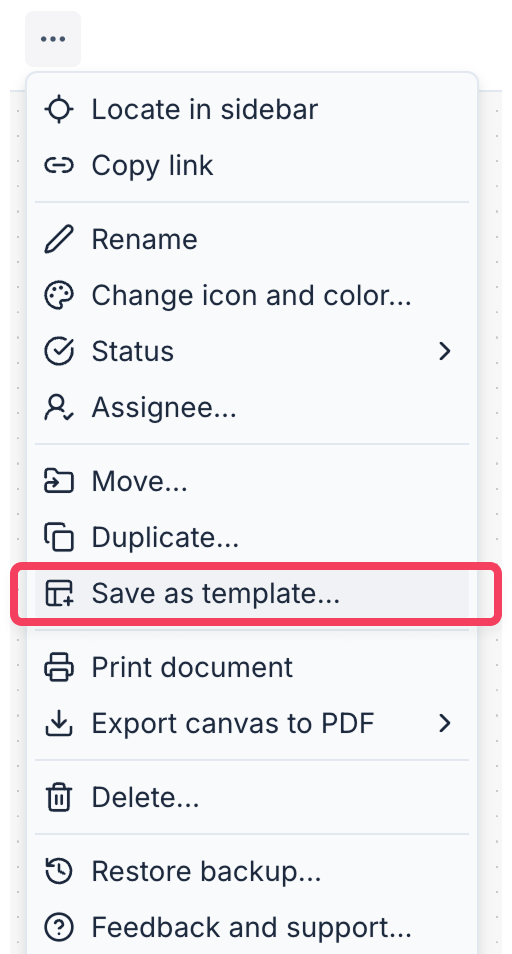
Click the file's option menu ... and select Save as template...
-
Confirm the action in the dialog that appears.
A copy of the file is saved to your organization's templates workspace, and you'll be taken to the new template file automatically.
Files in a private workspace cannot be saved as templates.
Publishing and unpublishing a template
Saving a file as a template doesn't make it available to your organization right away, so you need to publish it first.
Publishing a template
When viewing a template file, a status banner appears at the top of the page showing the template's current publish state. To publish:
-
Open the template file.
-
Click Publish in the banner at the top of the page.
Once published, the template will appear as an option when organization members create a new file.
The Publish button is only enabled when the template has content and there are unsaved changes since the last publish. If you update a published template, publish it again to make the latest changes available.
Unpublishing a template
To remove a template from the list of available templates without deleting it:
-
Open the template file.
-
Click Unpublish in the banner at the top of the page.
The template will no longer appear when creating new files, but the file itself is preserved in your templates workspace.
Creating a file from a template
When creating a new file, you can choose a template as the starting point instead of a blank canvas.
-
In your workspace, click New and choose Whiteboard or Document.
-
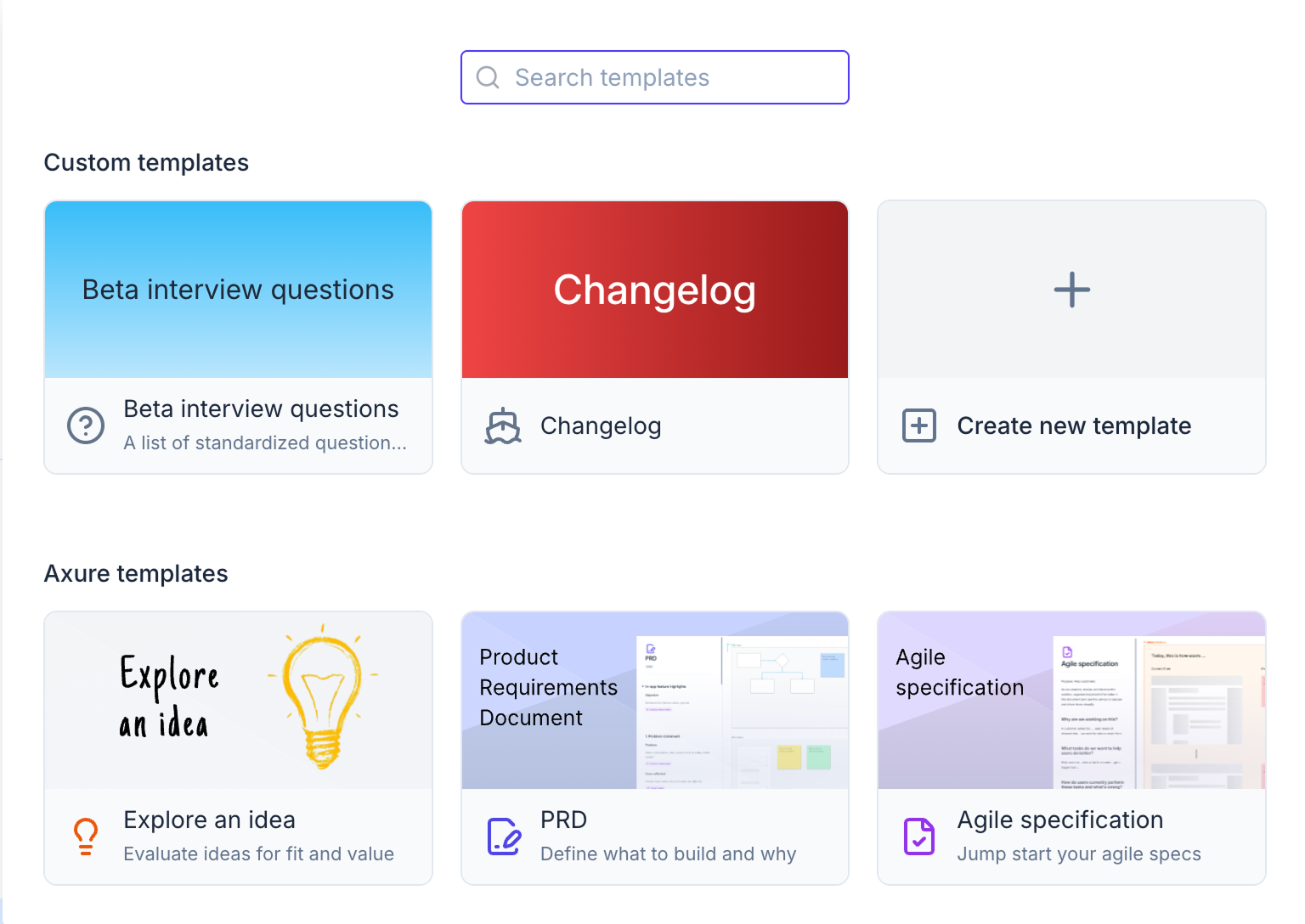
Click Browse templates in the new file dialog.
-
Select a template from the list of available templates and choose a destination workspace or folder.
-
Click to create the file. You'll be taken to the new file automatically.
Applying a template to an existing file
If you already have an empty whiteboard or document, you can apply a template to it without creating a new file.
-
Open an empty whiteboard or document.
-
The template picker appears automatically when a file is empty and you have edit access. Select a template from the suggestions shown, or click Browse templates to see the full list.
-
Select a template to apply it. The template's content will be inserted into the current file.
Templates can only be applied to files that are empty. If a file already has content, start from a template when creating a new file instead.
Managing templates
Your organization's template files are stored in the Templates workspace, which appears in the sidebar alongside your other workspaces. You can open template files directly from there to edit, publish, or unpublish them.
In the workspace file list, each template shows its publish status. You can publish or unpublish a template directly from the file list without opening the file.