Sections
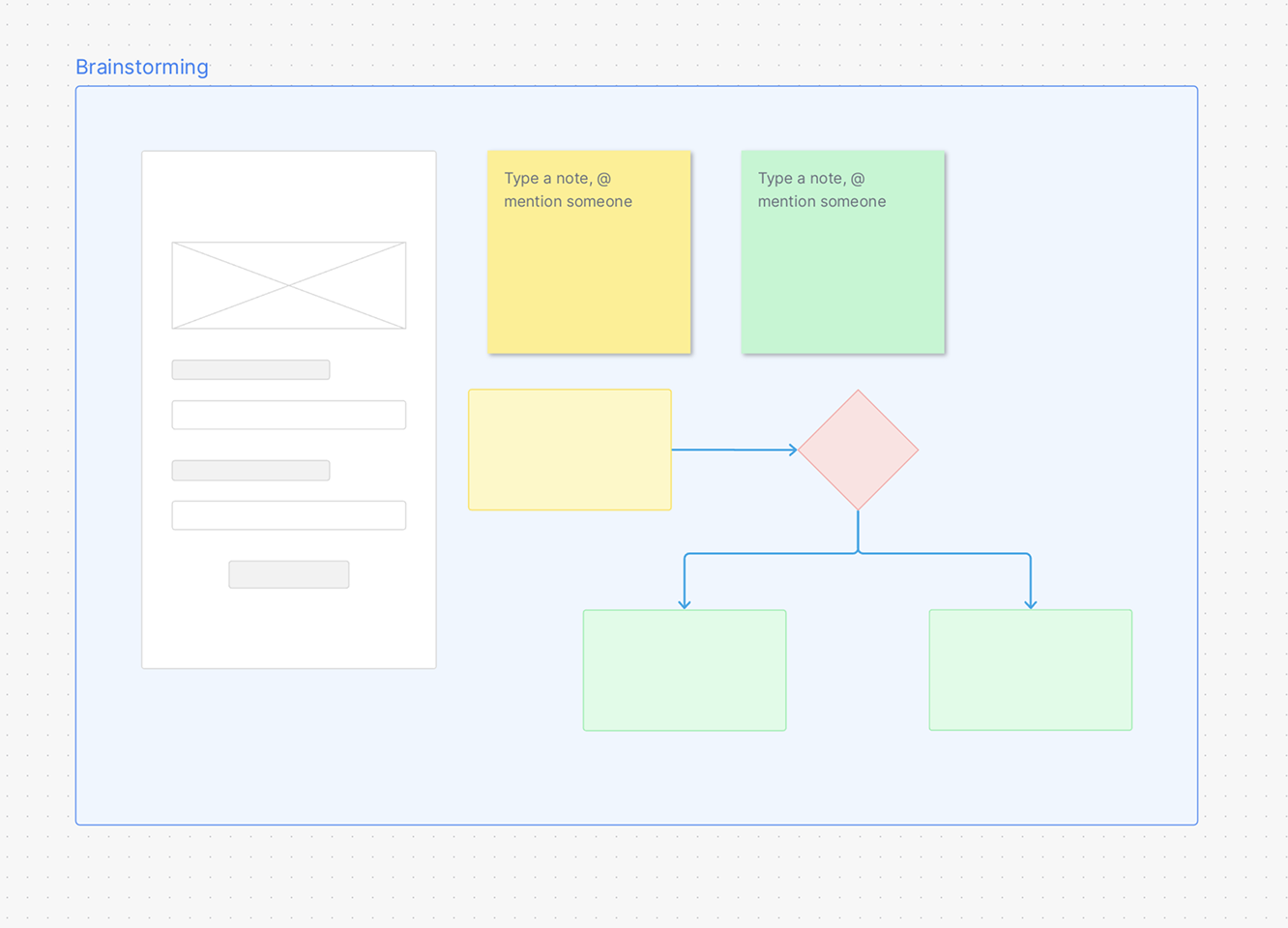
You can use Sections in whiteboards to organize related content and provide clearer structure within your canvas. Sections allow you to group text, shapes, images, notes, and other items into logical areas. You can also create a live screenshot of the section within the document using a link.
Creating sections
-
Open an existing whiteboard on app.axure.cloud, or create a new whiteboard.
-
With the canvas selected, press S or click the Section tool in the toolbar. You can also select a section color from the toolbar.

-
Click and drag on the canvas to create a section, or to surround existing items.
-
Double-click the section name in the top-left corner of the section to rename it.
-
Drag items onto the section area to add them to the section.
You can use the Outline pane to quickly view all elements contained in a section.
Linking to sections
You can link to a section on the canvas from within the document. This creates a live screenshot of the section that automatically reflects any changes made on the canvas. Section links are useful for sharing product requirements, supporting developer handoff, and organizing ideas and notes.
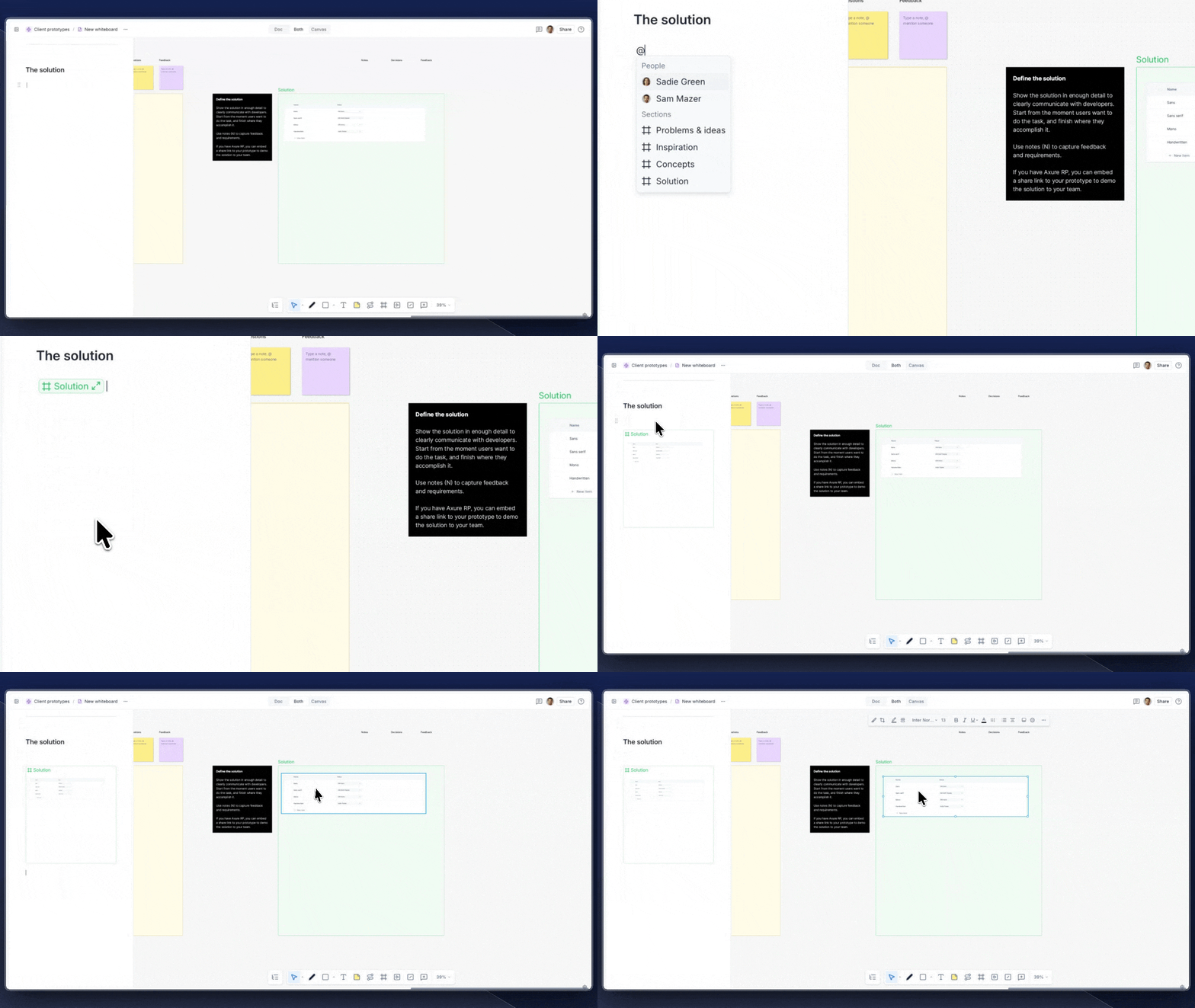
To create a section link:
-
Place your cursor in the document where you want to insert a link to a section.
-
Press @ and begin typing the name of the section.
-
Select the section from the dropdown list.
-
Click the expand button on the section link to display it as a live screenshot. The screenshot updates automatically when the section changes on the canvas.