Slack and Microsoft Teams notifications for Axure Cloud
Connect Axure Cloud to Slack or Microsoft Teams to receive notifications about discussion activity in a channel of your choice. You can set up notifications for an entire workspace or for individual projects.
Slack
-
Sign in to app.axure.cloud or the Axure Cloud desktop app.
-
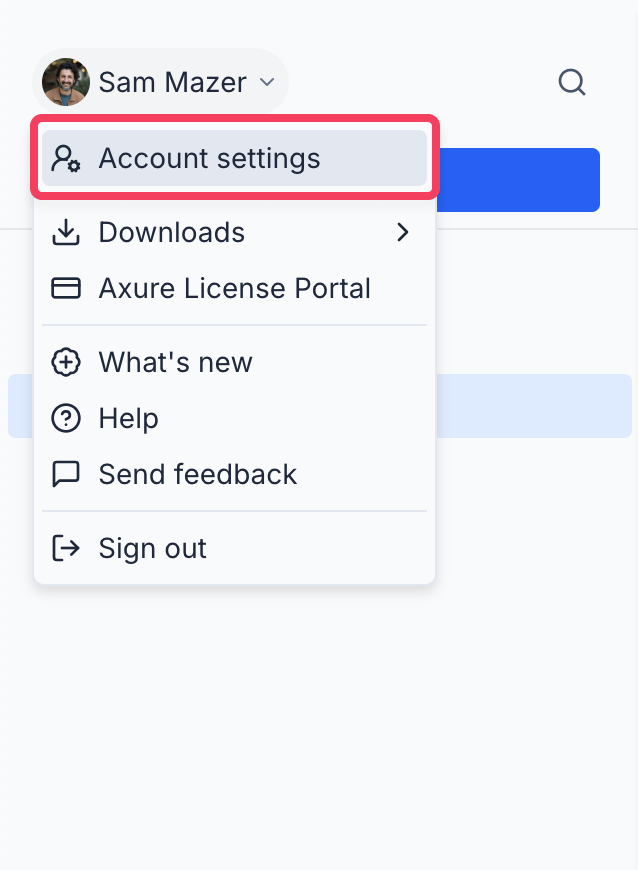
Click your name at the top-left of the page and select Account settings in the dropdown.
-
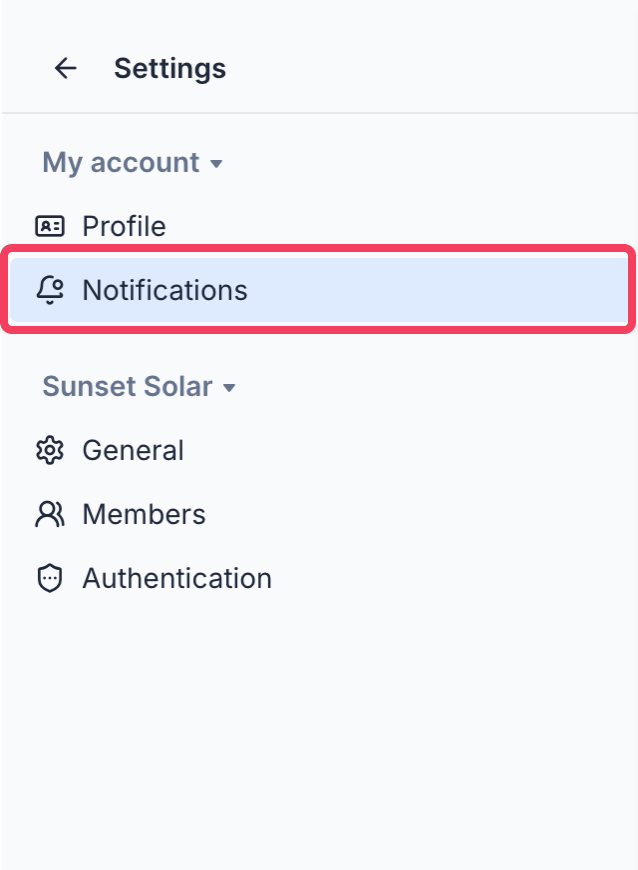
In the sidebar, click on Notifications.
-
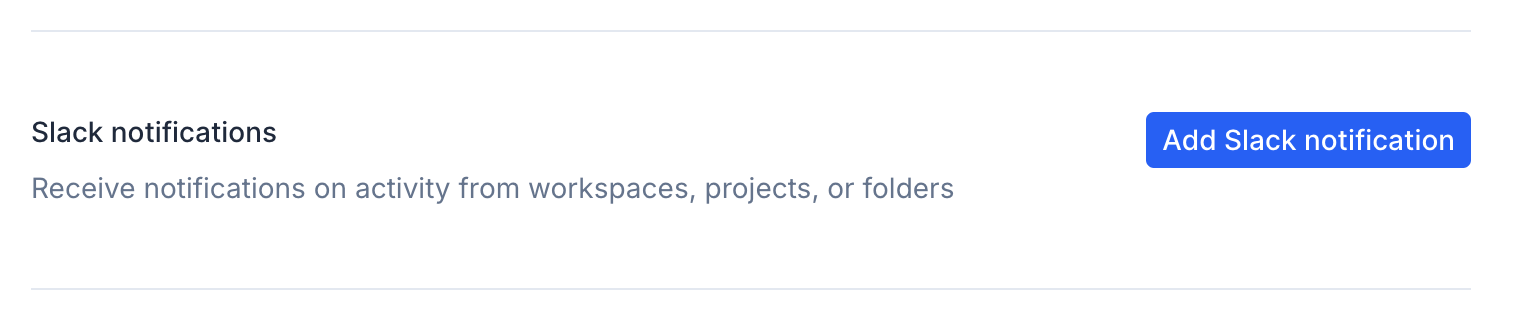
Scroll down to the Slack notifications section and click Add Slack notification.
-
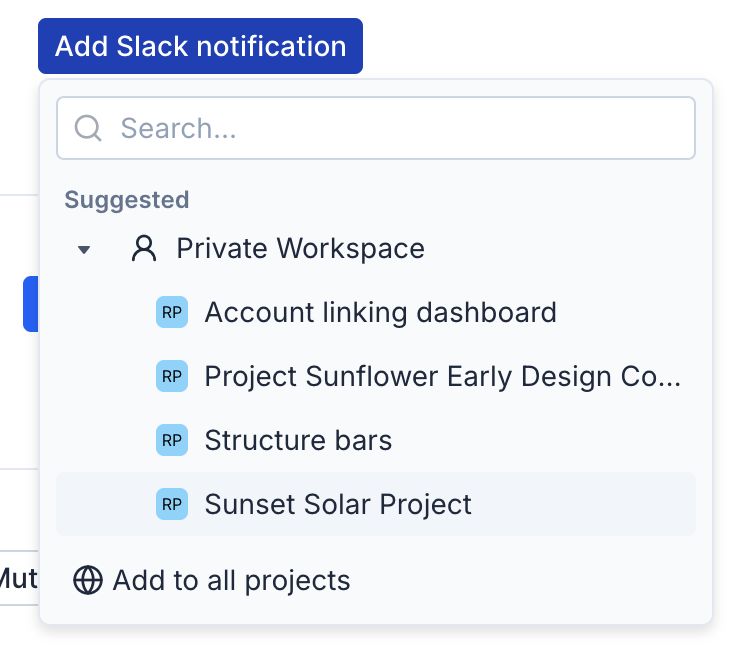
In the modal that appears, click on the workspace or individual project you want to be notified about.
You'll be redirected to slack.com.
-
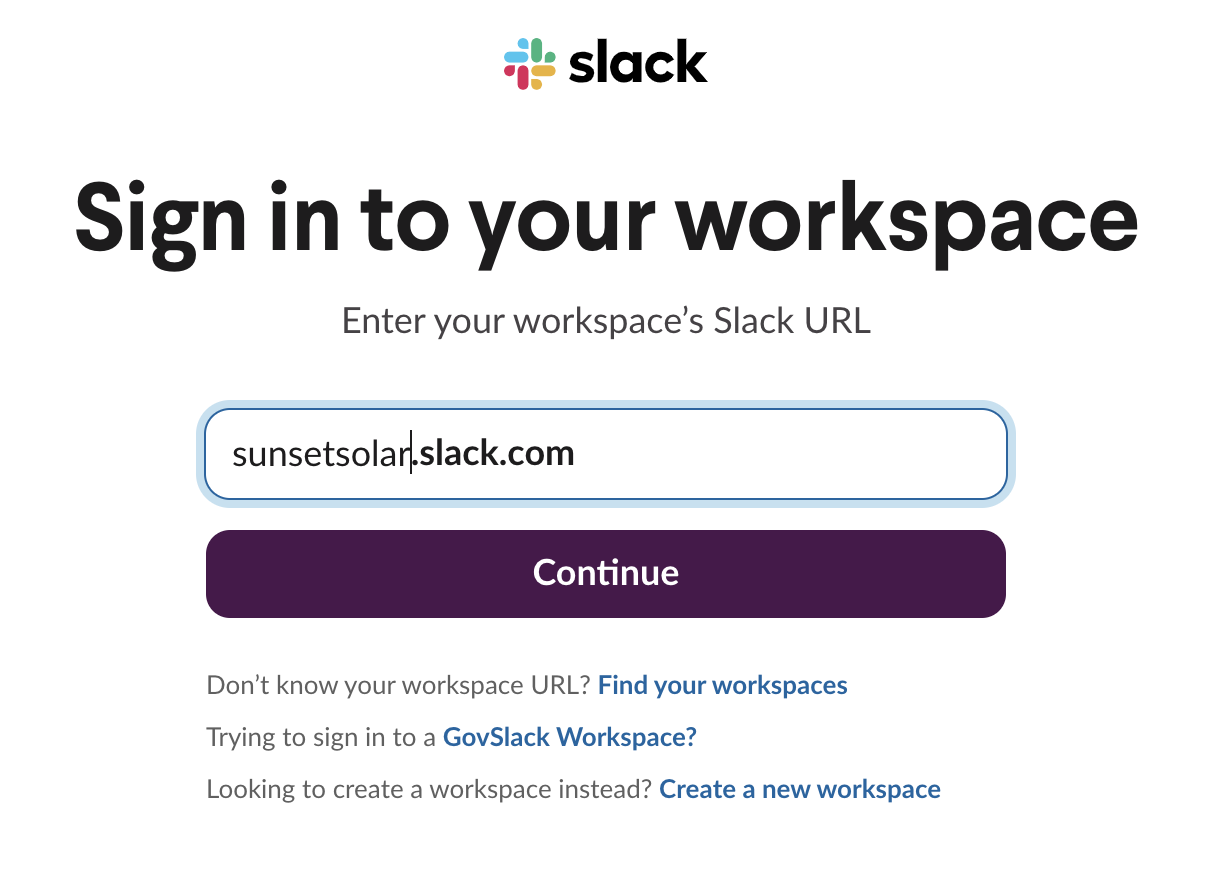
Sign in to your Slack workspace if you aren't already authenticated. Then, select the channel you want to receive notifications in and click Authorize.
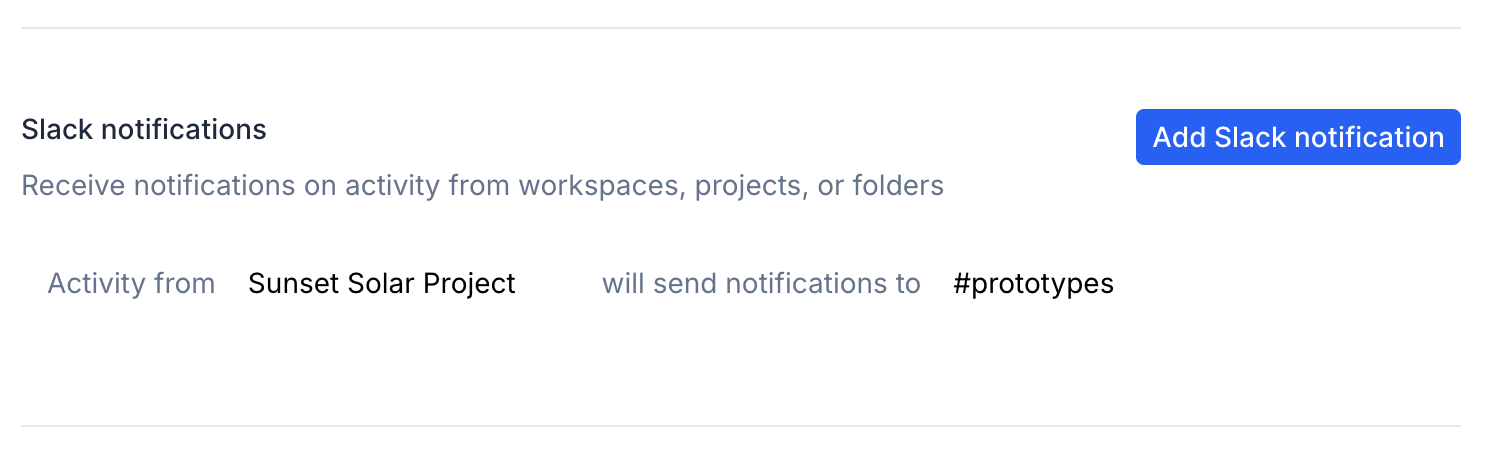
You'll be redirected back to the Notifications page at app.axure.cloud, and your new notification will appear at the top of the list in the Slack notifications section.
You can change the Slack channel the notification posts to by clicking the channel name. To change the watched workspace or project, click the project name. Click the Delete button 🗑️ to delete the notification.
Microsoft Teams
-
Sign in to Microsoft Teams in your web browser or desktop application.
-
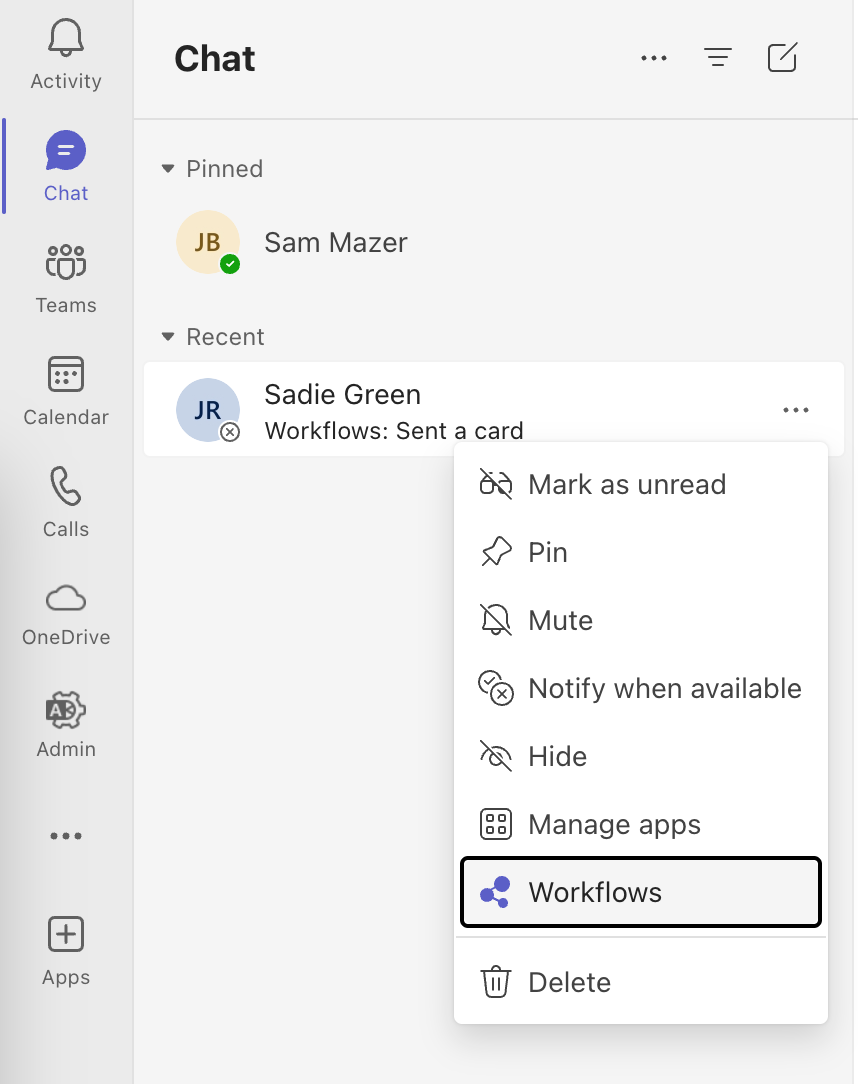
In the sidebar click the more options ... button next to the channel or chat you want to receive notifications in. Then, click Workflows.
-
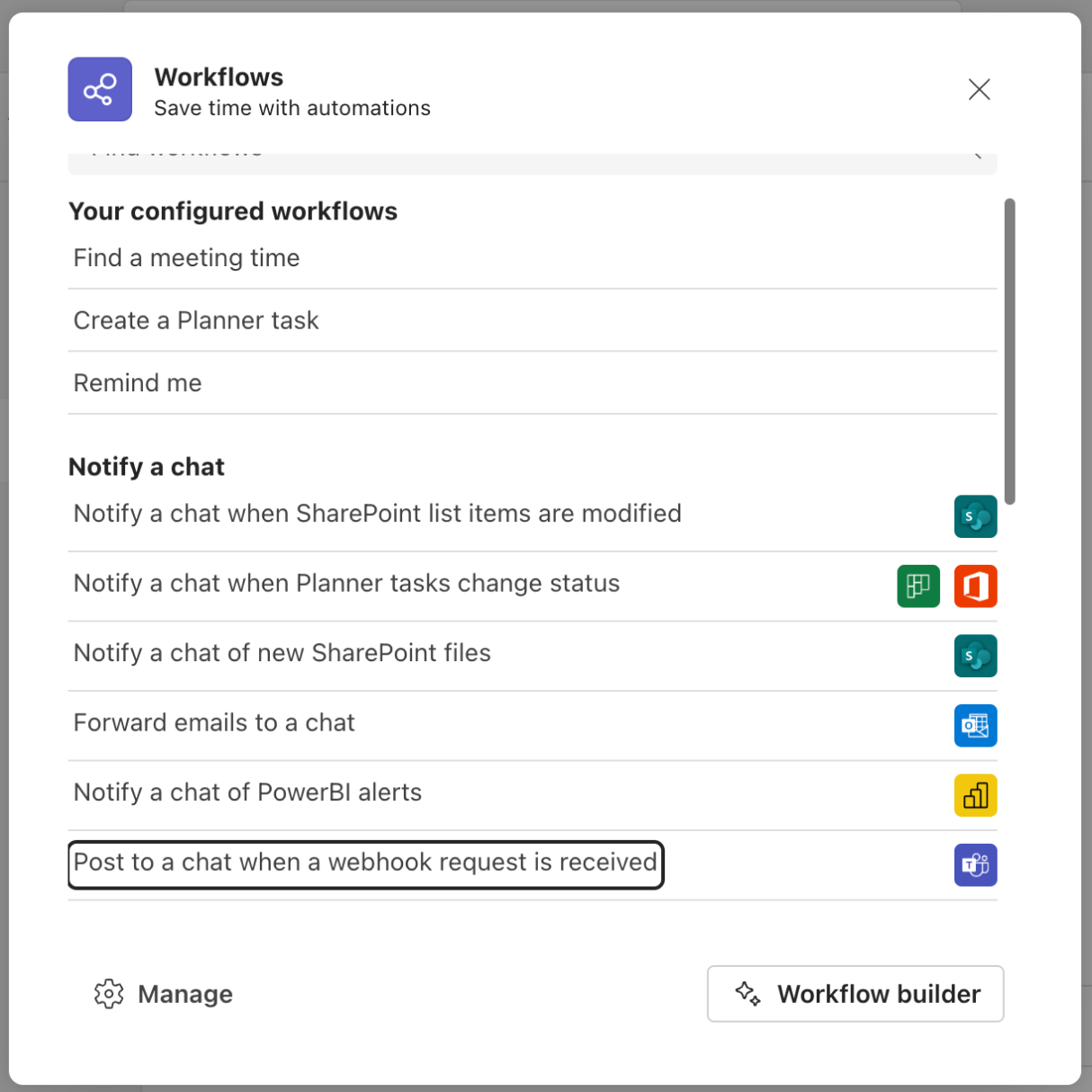
In the Workflows dialog choose the workflow template to post to a chat/channel when a webhook request is received.
-
Name your workflow and click Next.
-
Confirm the chat/channel to send notifications to and click Add workflow.
-
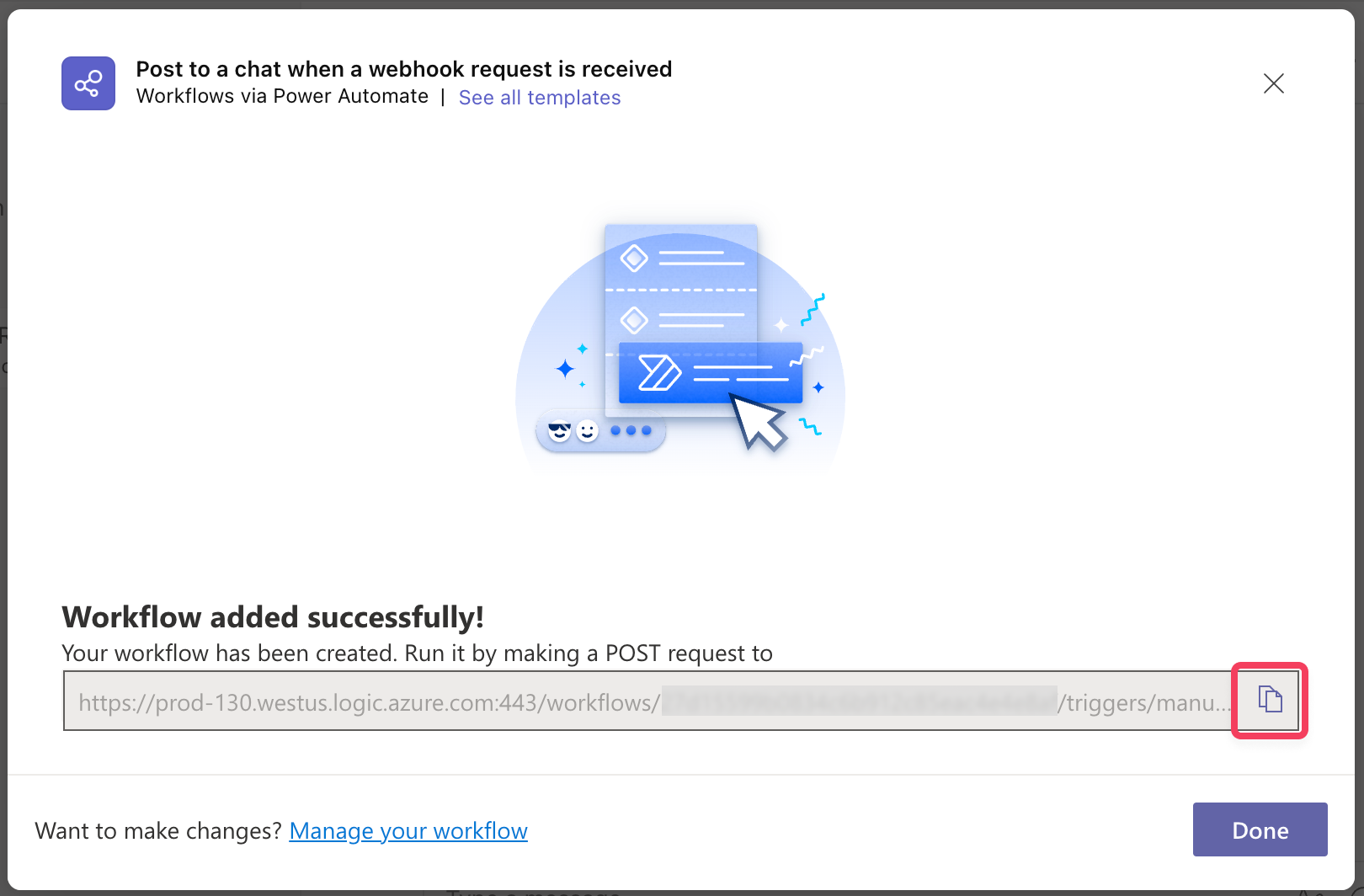
Once the workflow is created, you'll see a new dialog with the URL that you can copy.
-
Sign in to app.axure.cloud or the Axure Cloud desktop app.
-
Click the profile dropdown at the top of the application, then select Account settings.
-
In the sidebar, click on Notifications.
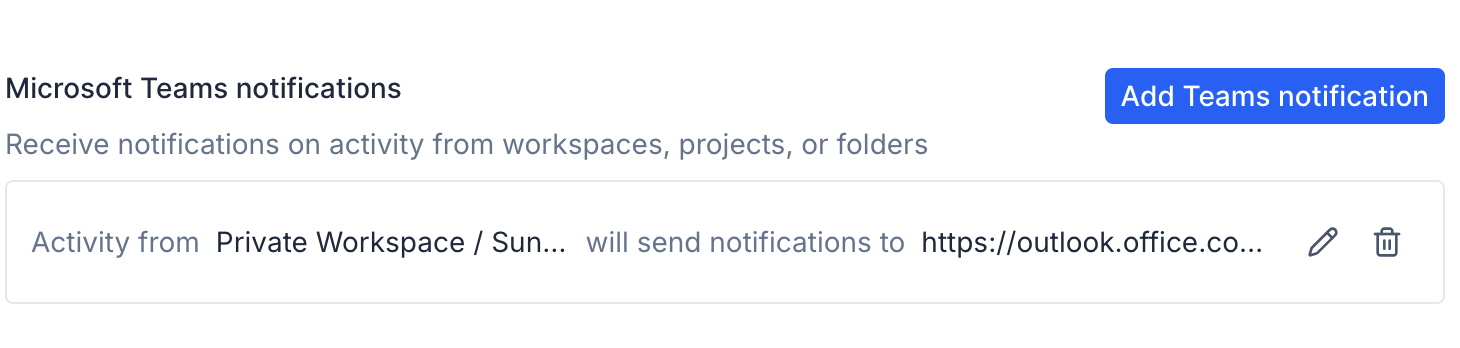
- At the bottom of the page, click Add Teams notification.
-
Select the workspace or project for which you want to receive notifications.
-
Below, paste the workflow URL for your Microsoft Teams channel or chat.
-
Click Add notification when you're done.
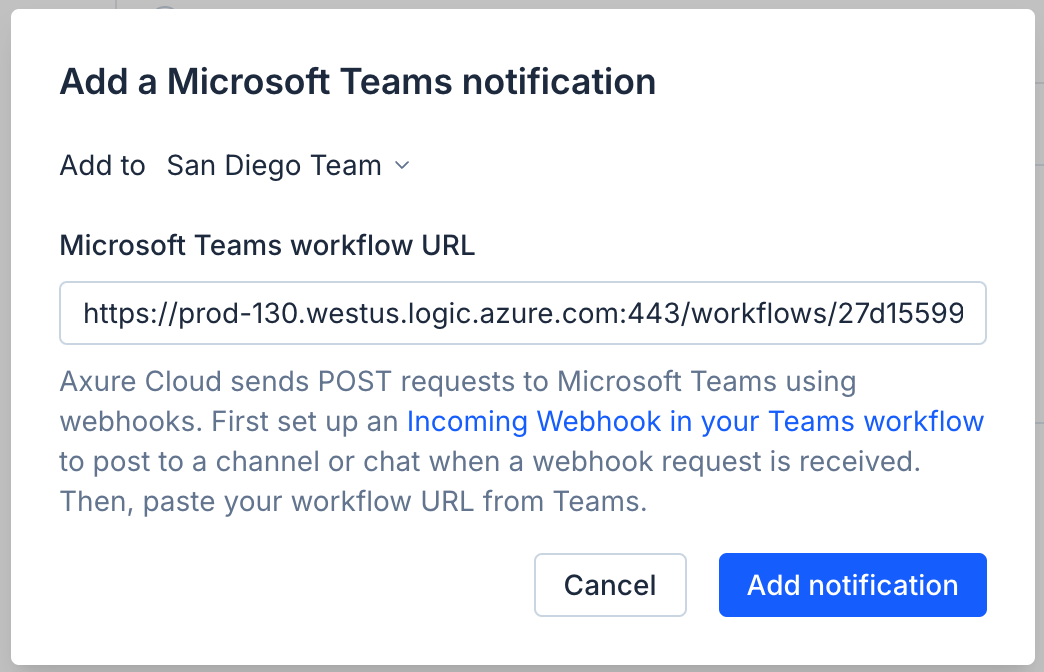
If you want to send notifications for another workspace or project to the same channel or chat in Microsoft Teams, set up a new notification and use the same workflow URL. You can use a workflow URL for as many notifications as you need.
To change the Microsoft Teams channel the notification posts to, or to change the watched workspace or project, click the Edit button ✏️. To delete the notification, click the Delete button 🗑️.