Uploading RP files in the browser
Uploading from Axure Cloud
-
Sign in to app.axure.cloud or the Axure Cloud desktop app.
-
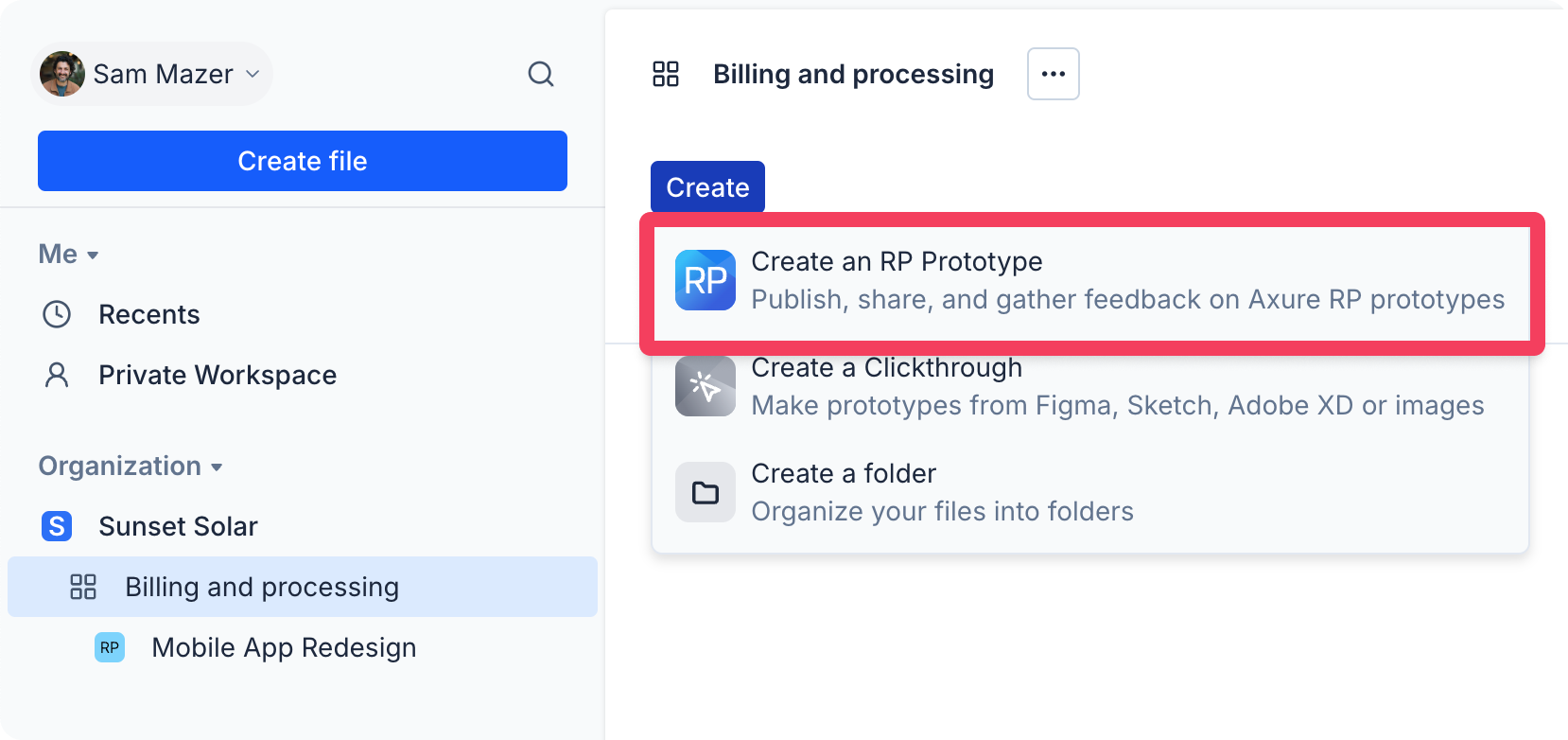
Select the workspace you want to add the new Axure RP project file to, and then click Create → Create an RP Prototype.
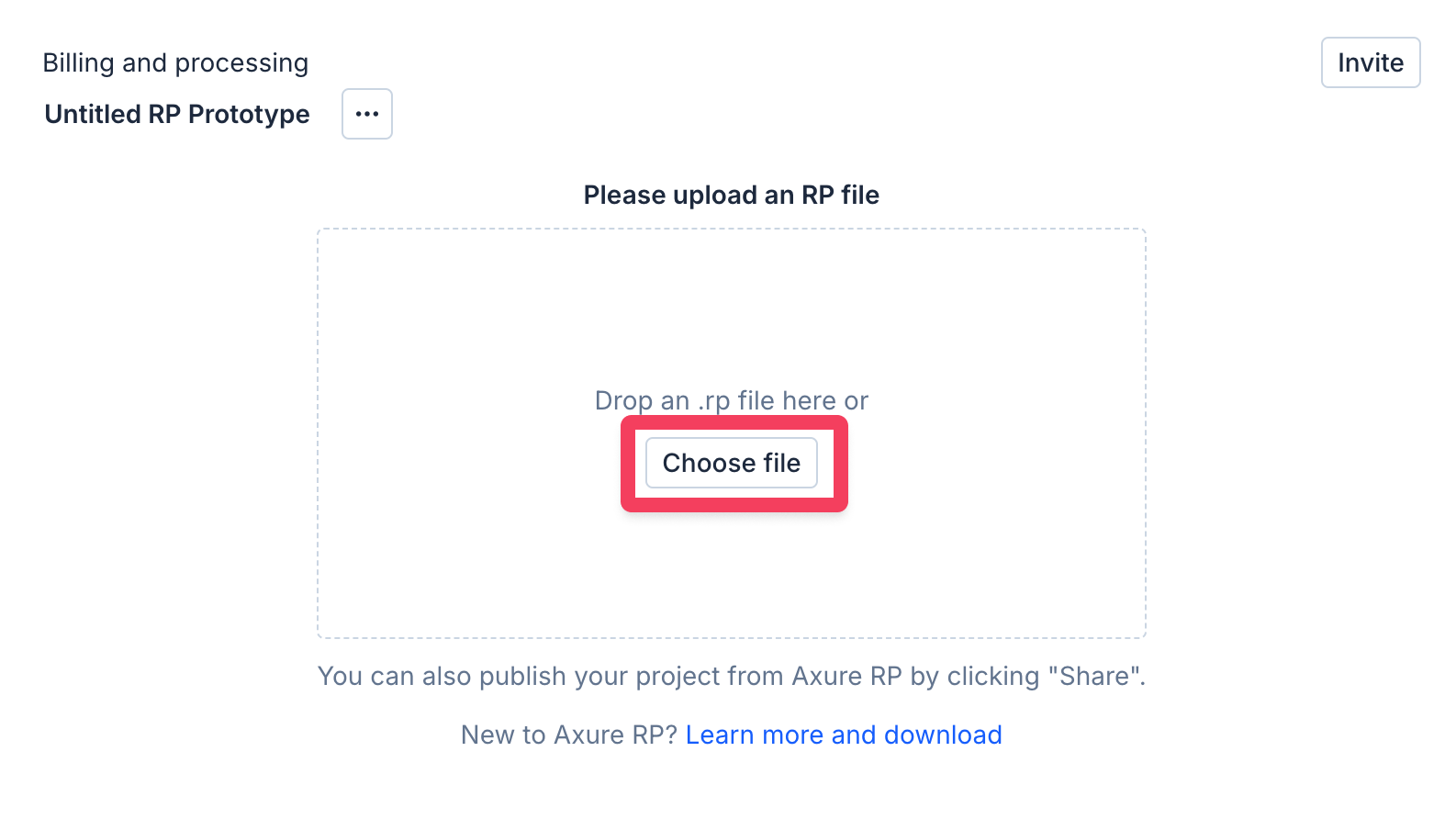
- You'll be taken to the project's Overview screen, click Choose file to browse for the RP file you want to publish.
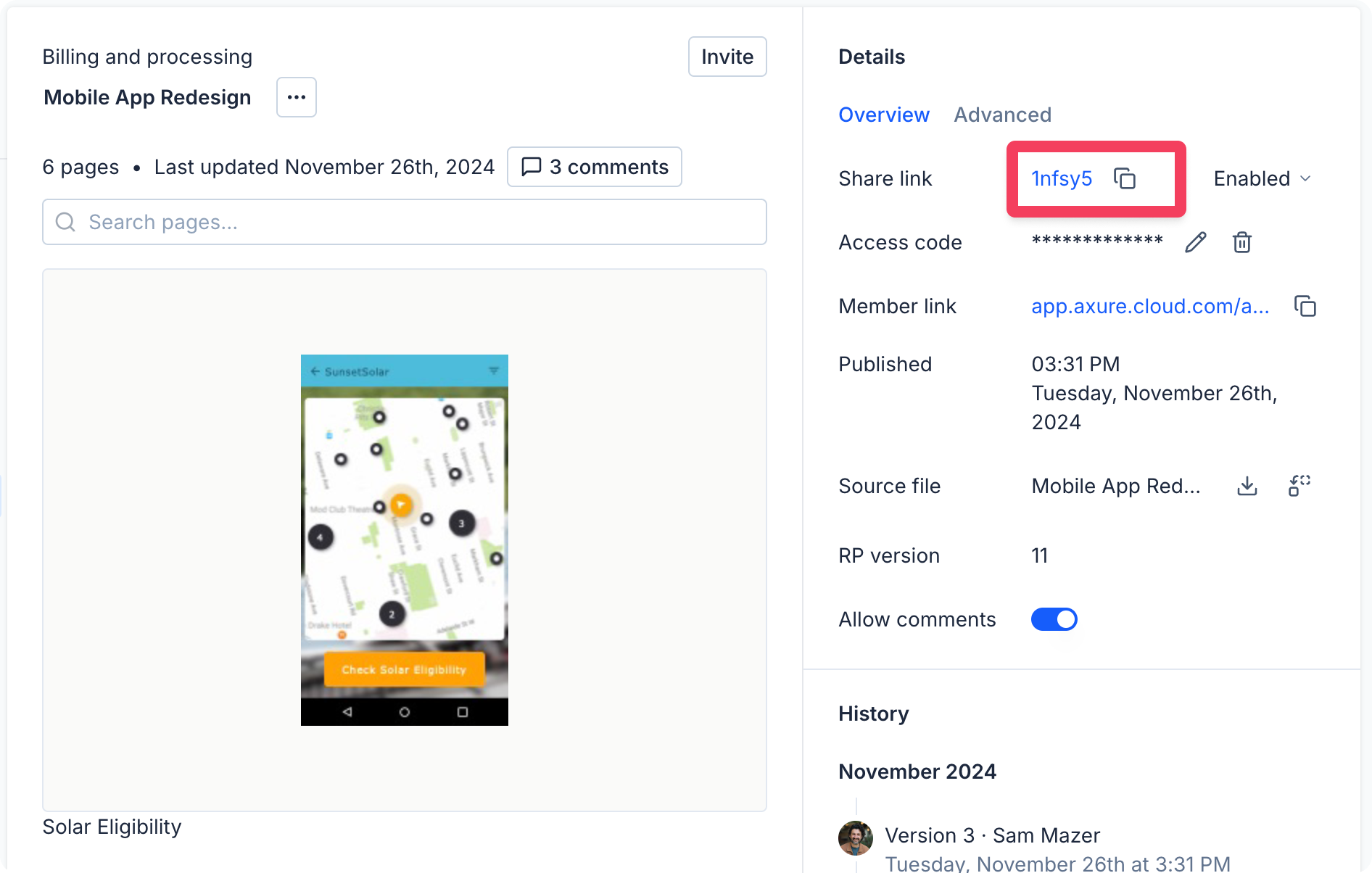
- Once the upload begins, the project will generate automatically. After it's ready, you'll be taken to the project's Overview screen, where you can copy the project's share link.
Downloading and updating the RP file
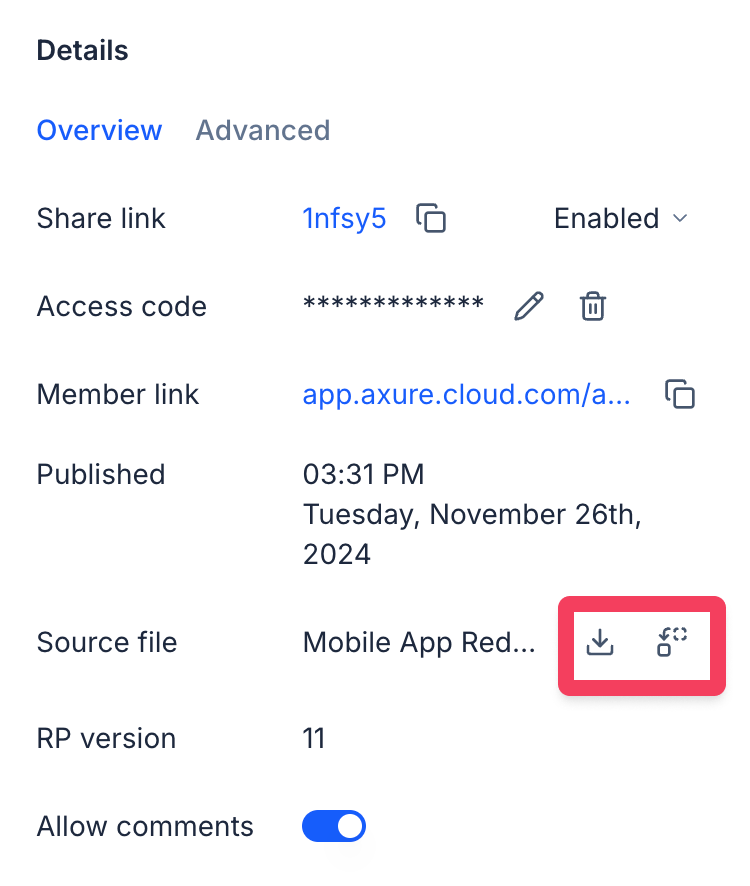
You can download the RP file from an Axure Cloud project by clicking the Download icon next to the Source file label on the project's Overview screen.
To update the project with a new RP file, click the Replace icon.
info
Replacing a project with a new RP file will remove any discussion comments that were added to the current project file.
Sharing Axure RP projects
For more information on sharing published Axure RP projects, including disabling the share link and changing the project access code, check out the article on sharing Axure RP projects from Axure Cloud.