Assignment
Assignment lets you assign workspace items to team members so your team can track who is working on what. You can assign documents, whiteboards, prototypes, clickthroughs, and links to any member of the workspace.
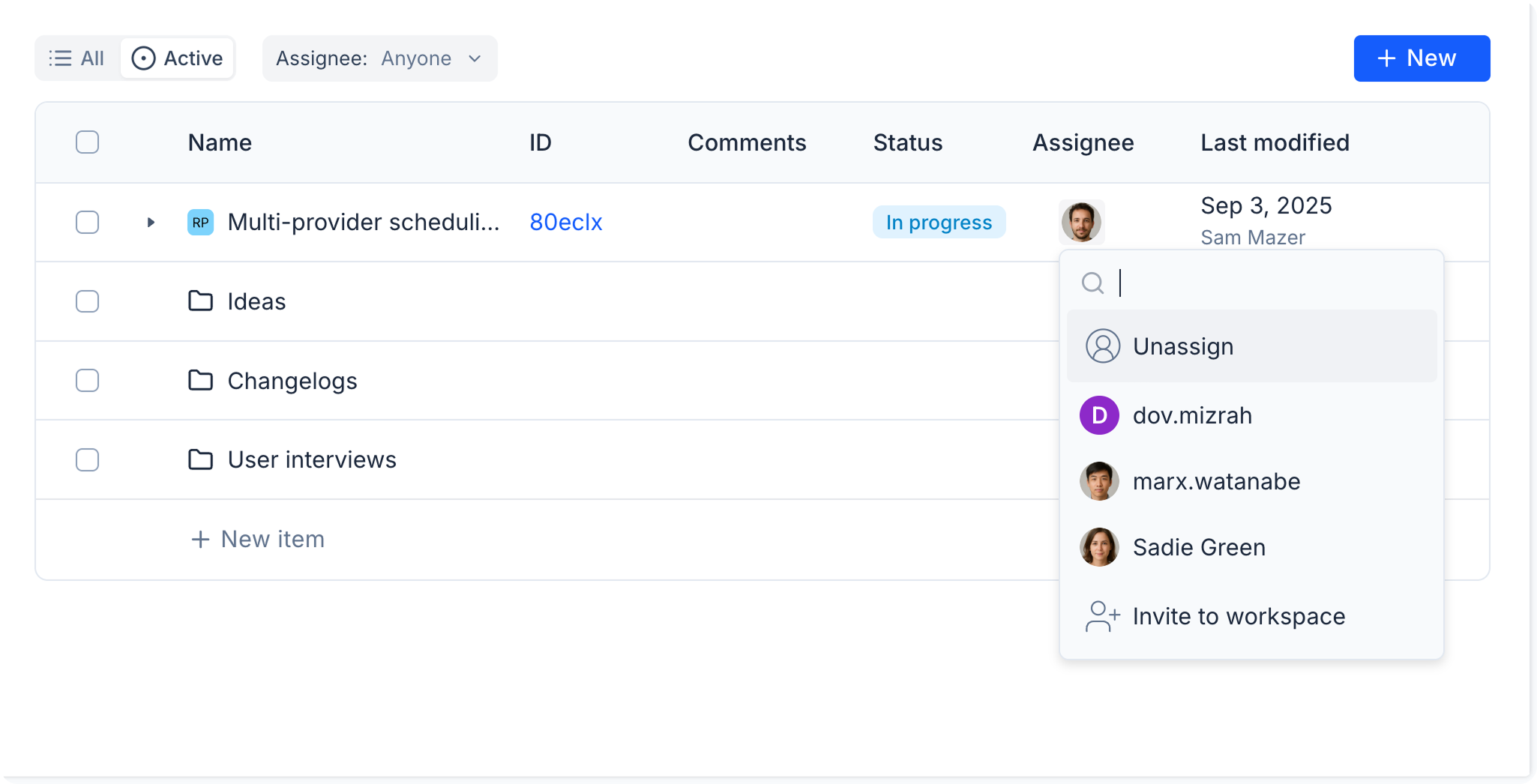
Assigning an item
-
Navigate to the workspace containing the item.
-
In the Assignee column of the workspace table, click the assignee icon for the item you want to assign.
-
In the popup, find and select the team member you want to assign the item to. You can search by name or email address to filter the list.
The assigned team member will receive an email notification about the assignment.
You can only assign items to members who have access to the same workspace. If the person you want to assign is not yet a workspace member, select Invite to workspace at the bottom of the assignee list.
Unassigning an item
-
Click the assignee icon for the item in the Assignee column.
-
Select Unassign at the top of the popup.
Filtering by assignee
Use the assignee filter at the top of the workspace table to show only items assigned to specific team members. You can filter by multiple people at once.
Notifications
When an item is assigned to you, you'll receive an email notification that includes:
- Who assigned the item to you
- A link to view the item
- The item's current status
You can manage your notification preferences in your account settings.