Whiteboards and documents
Whiteboards
Whiteboards combine a shared canvas with a side-by-side document. Use the multiplayer canvas to diagram, sketch, and map ideas while keeping agendas, goals, and reference notes organized in the document.
Documents
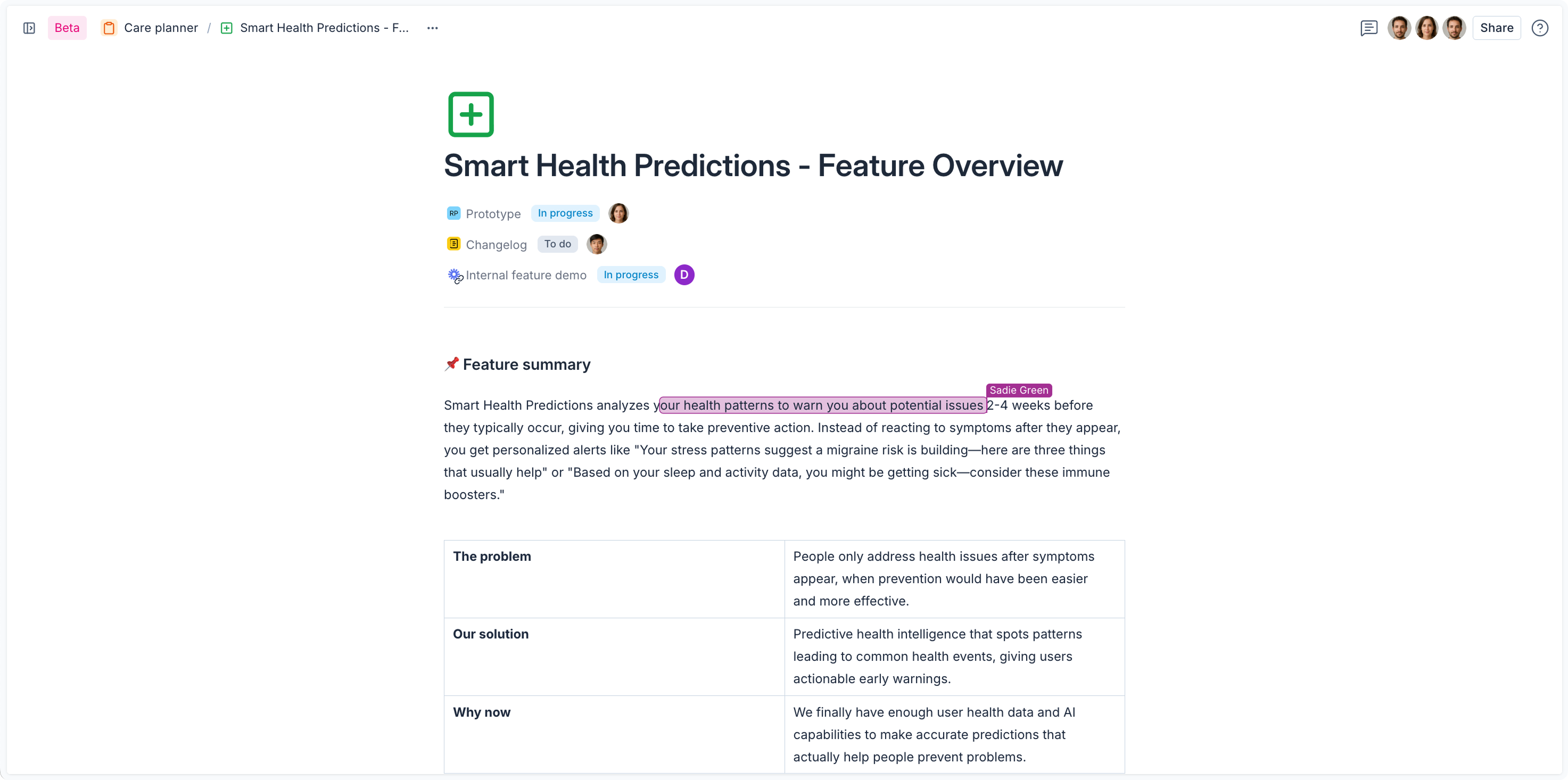
Documents provide a live collaborative space for capturing and sharing information with your team. You can use them to draft product requirement documents (PRDs), build a knowledge base, or keep track of notes and checklists.
Creating whiteboards and documents
-
Sign in to app.axure.cloud or the Axure Cloud desktop app.
-
Select the workspace you want to add the new item to.
-
Click New and choose either Whiteboard or Document from the dropdown menu.
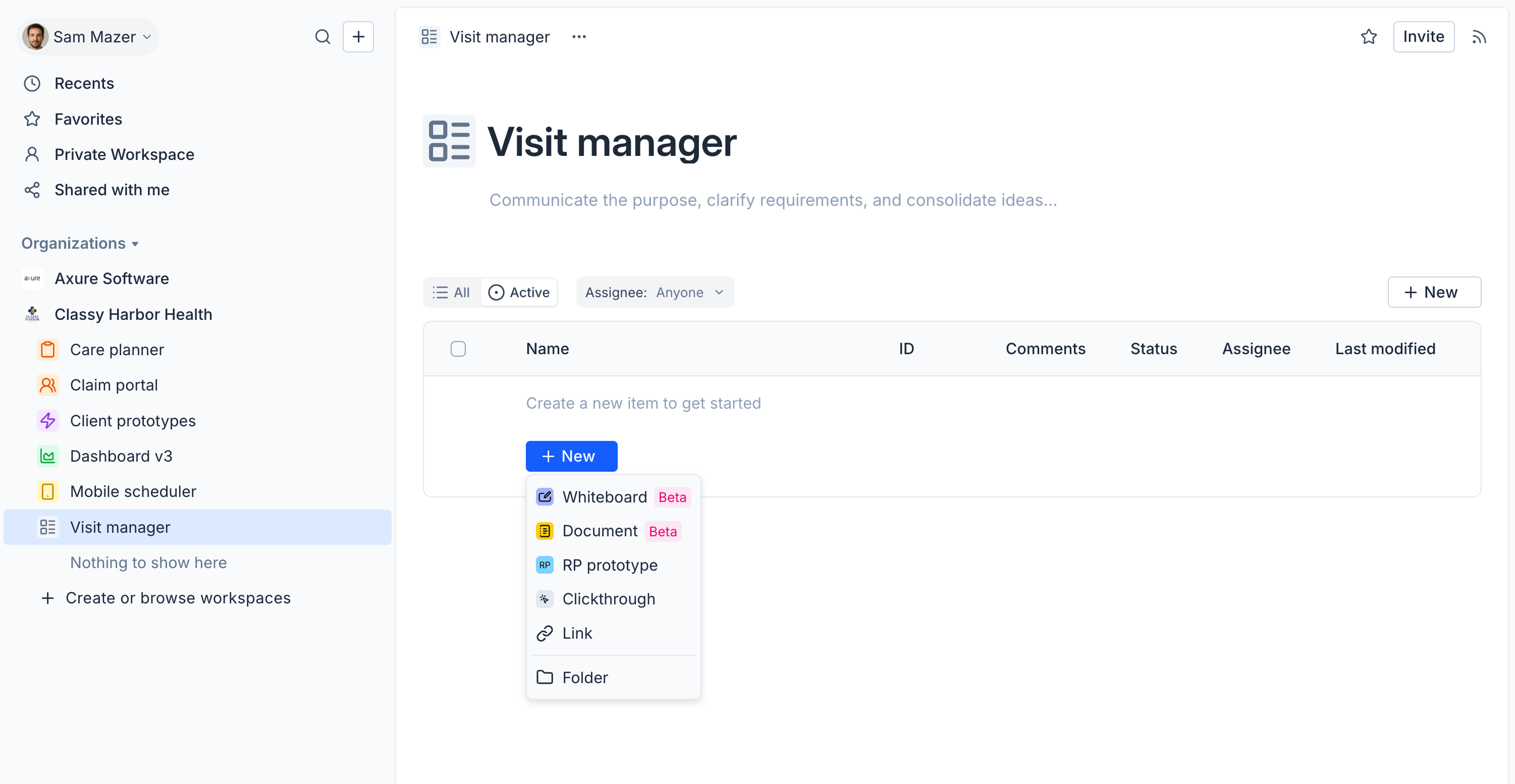
- Once you open your new whiteboard or document, click the welcome button for a quick tutorial to get started:
- For whiteboards: Click Welcome to Axure whiteboards
- For documents: Click Welcome to Axure documents
Sharing whiteboards and documents
You can share whiteboards and documents using the share link. Workspace members always have access according to their role, but you can also control what happens when the link is opened by someone outside your workspace.
Anyone with link
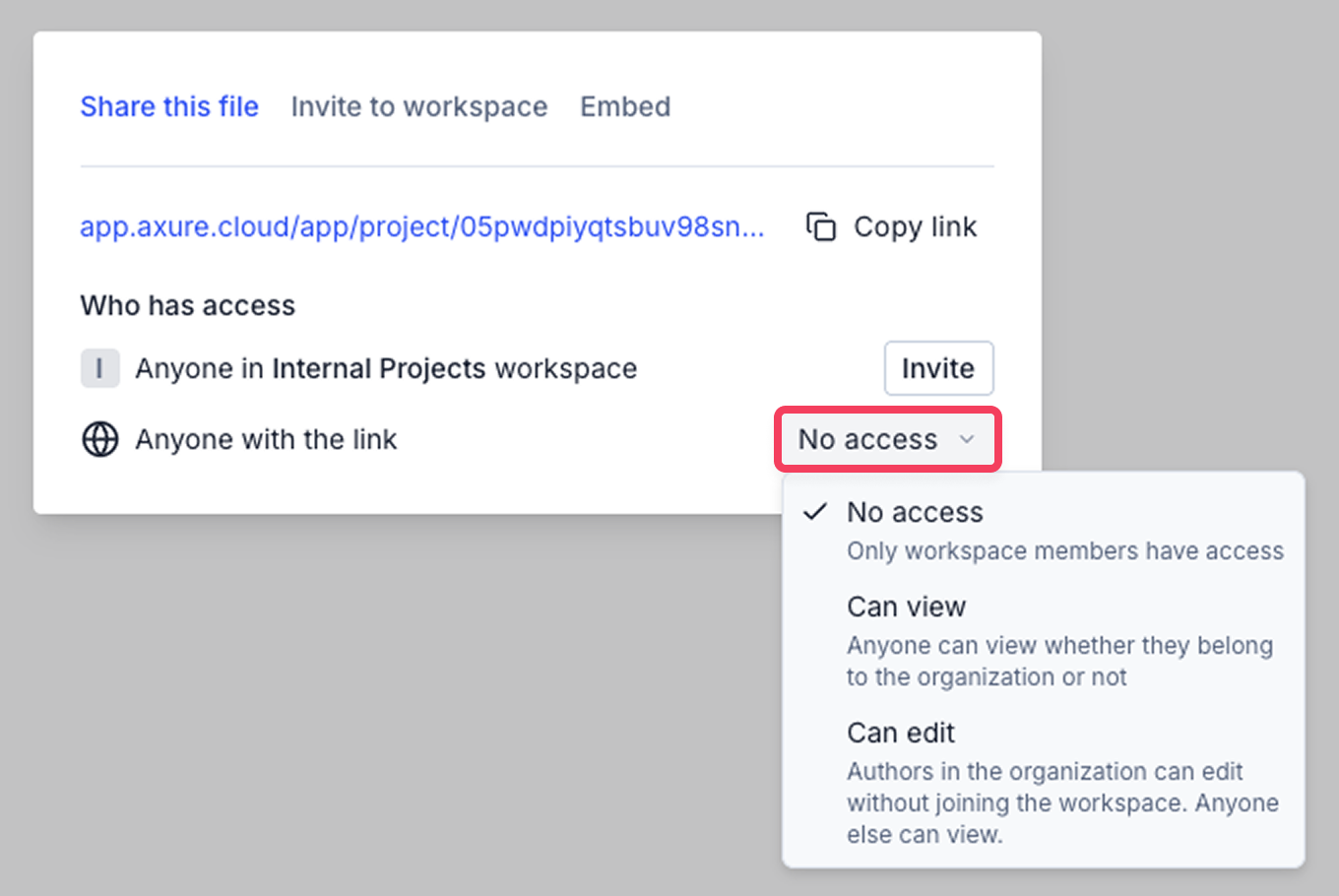
When you click Share in the top-right corner of a whiteboard or document you’ll see options to copy the share link and set access for Anyone with the link. For anyone with the link, you can choose from these permission levels:
- No access – Only workspace members can open the item
- Can view – Anyone with the link can open and view the item, even if they aren’t part of the workspace
- Can edit – Authors in your organization can edit the item without joining the workspace. Everyone else with the link can still view the item
To update a whiteboard or document's share link permissions:
-
Open the whiteboard or document you want to share.
-
Click Share in the top-right corner.
-
Use the dropdown next to Anyone with the link to choose a permission level.
-
Copy the share link.
-
Share the link with others.